
Save your changes
Send changes to your FlightWall with the save bar, and understand each message it shows.
Changes you make in the app stay on your phone until you save them. This applies to every tab and to the brightness and sleep sheets.
Save or discard
While you have unsaved changes, a bar reading Unsaved changes floats above the tab bar.
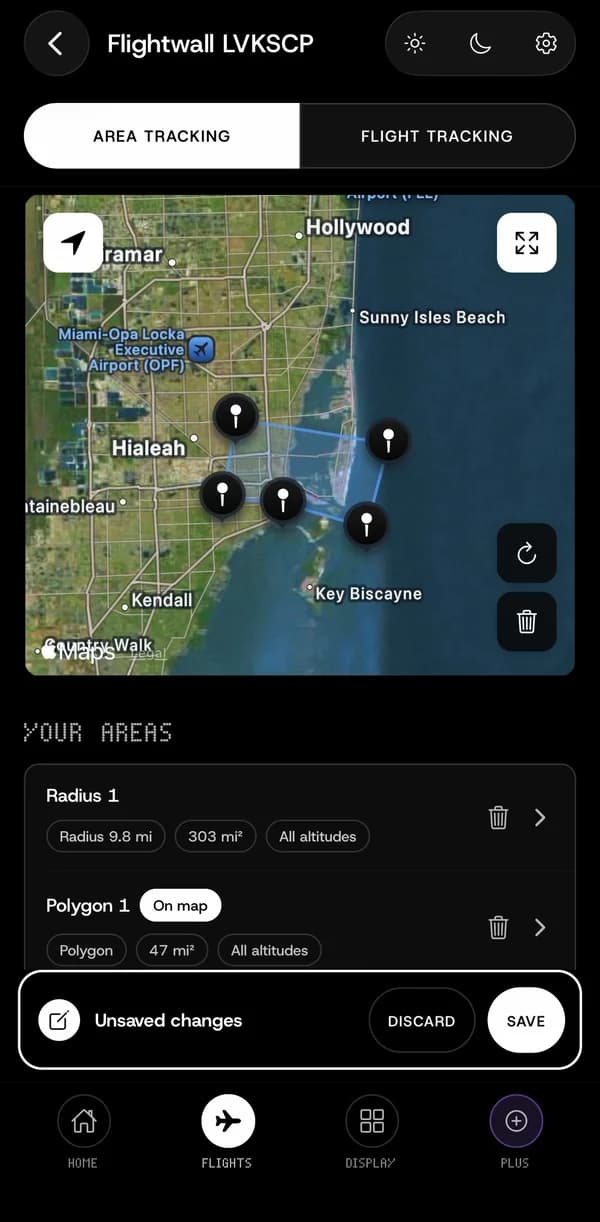
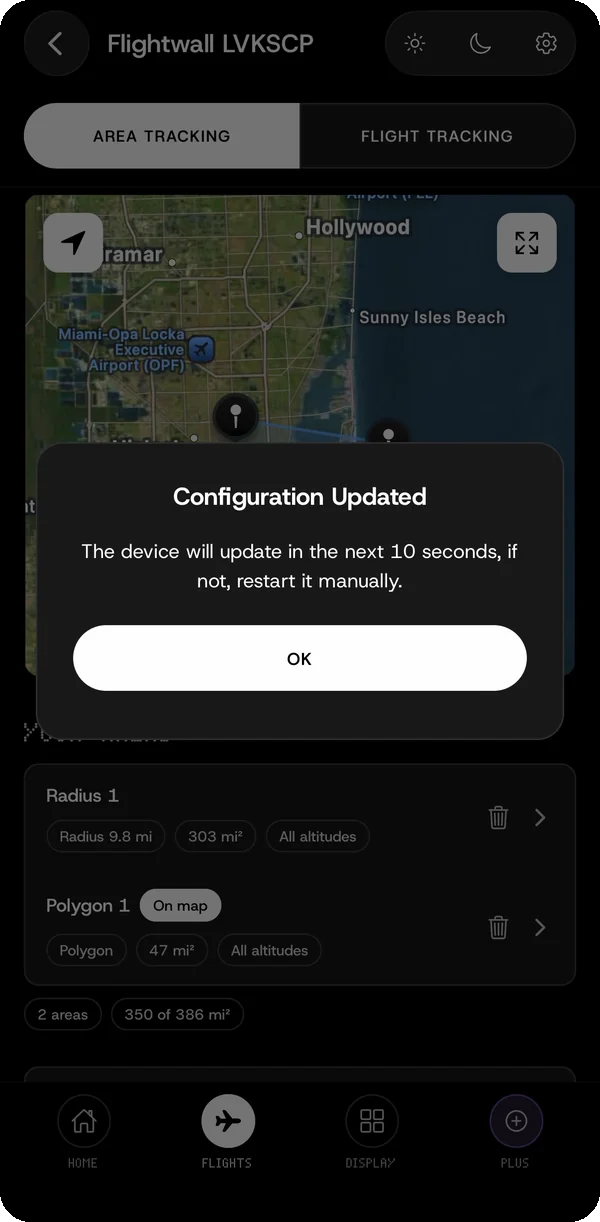
- Select Save to send your changes to the display. The bar shows Saving…, then the app shows Configuration Updated. The display picks up the change within about ten seconds.
- Select Discard to drop your changes. The app asks you to confirm Discard changes?, then reloads the saved settings.
If you leave a display with unsaved changes, the app asks what to do with them: Discard, Save, or Cancel to stay.
When Save is blocked
The bar names the problem when the display would reject your changes. Fix it, then save again.
| Message | What to do |
|---|---|
| Areas too large to save | Your areas cover more than 1,000 km², about 386 mi², in total. Shrink or remove an area. See Area tracking. |
| [Area name] needs at least 3 points | A polygon is unfinished. Add points on the map, or delete the area. |
| Too many points or areas to save | The settings are too large for the display to store. Remove some areas or polygon points. |
| Display settings too large to save | Remove some anchor airports or additional timezones. |
| These changes can't be saved | Check your areas and update the app if an update is available. If it keeps happening, report it. |
| Can't save until settings load | The app could not load the display's settings. Select Try again on the notice that says so. |
You cannot save while connected to the display
The app cannot save while your phone is joined to the display's own Flightwall- Wi-Fi network. It
shows Cannot Save While Connected. Disconnect from that network, rejoin your normal Wi-Fi or
mobile data, then save.
If someone else changed the settings
Two phones can manage the same display. If another phone saved changes while you were editing, the app shows Settings changed. Your edits stay on screen. Select Discard edits and reload to load the latest settings, then make your changes again.
If the wall does not change
- Check that the save bar is gone. If it is still there, the change was not sent.
- Wait about ten seconds.
- If the wall still has not changed, restart the display: unplug it for about ten seconds, then plug it back in.
If a setting still has no effect, the layout may not support it. See Display problems.