
Find your way around the app
The device list, the four tabs, the buttons at the top right, and the bar you use to save.
This page shows where each part of the TheFlightWall app lives, so you can find a setting without knowing its name first. It covers app version 4.0 and later. If you used an earlier version, see What changed in app 4.0.
The device list
The app opens on a list of your displays. Each row shows the display's name and whether it is a Mini Display or a Widescreen Display.
- Add Device starts setup for a new display. See Pair your display.
- Issue Report sends a problem report to TheFlightWall. See Reporting a problem.
- The gear opens app settings, which apply to the app rather than a display. See App settings.
- While you are signed in to TheFlightWall Plus, an account icon beside the gear opens your Plus account. See Manage your Plus account.
Select a display to open its settings.
The tab bar
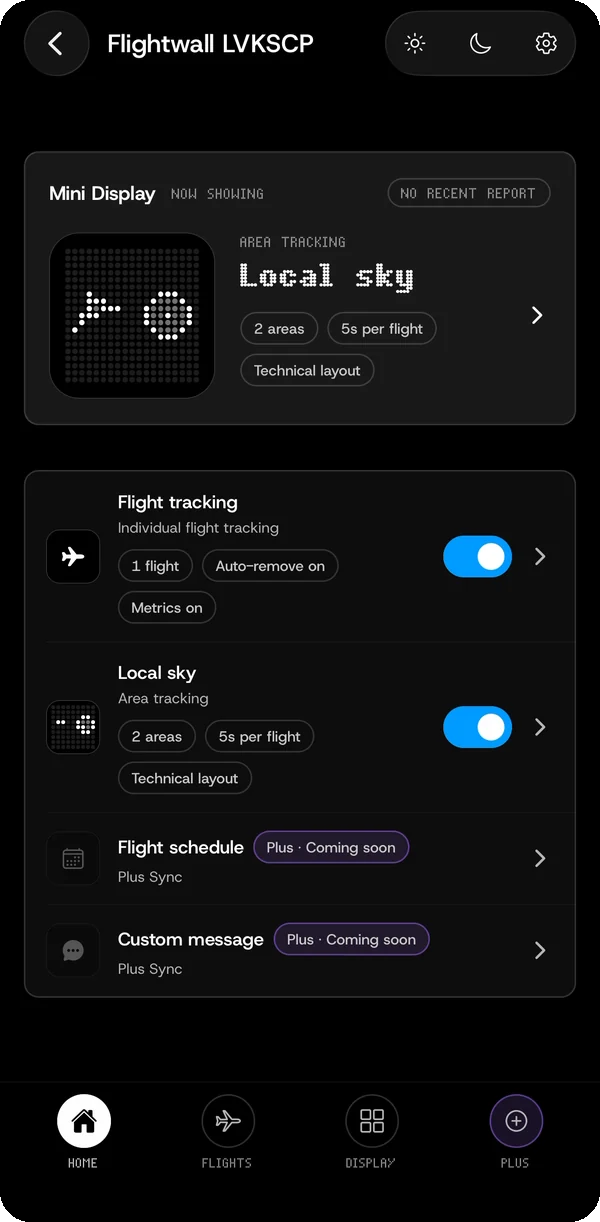
Every display opens on Home. The tab bar at the bottom of the screen switches between four tabs.
| Tab | What it is for | Read more |
|---|---|---|
| Home | What the wall is showing now and why, with an on/off switch for each kind of content | Home and Now showing |
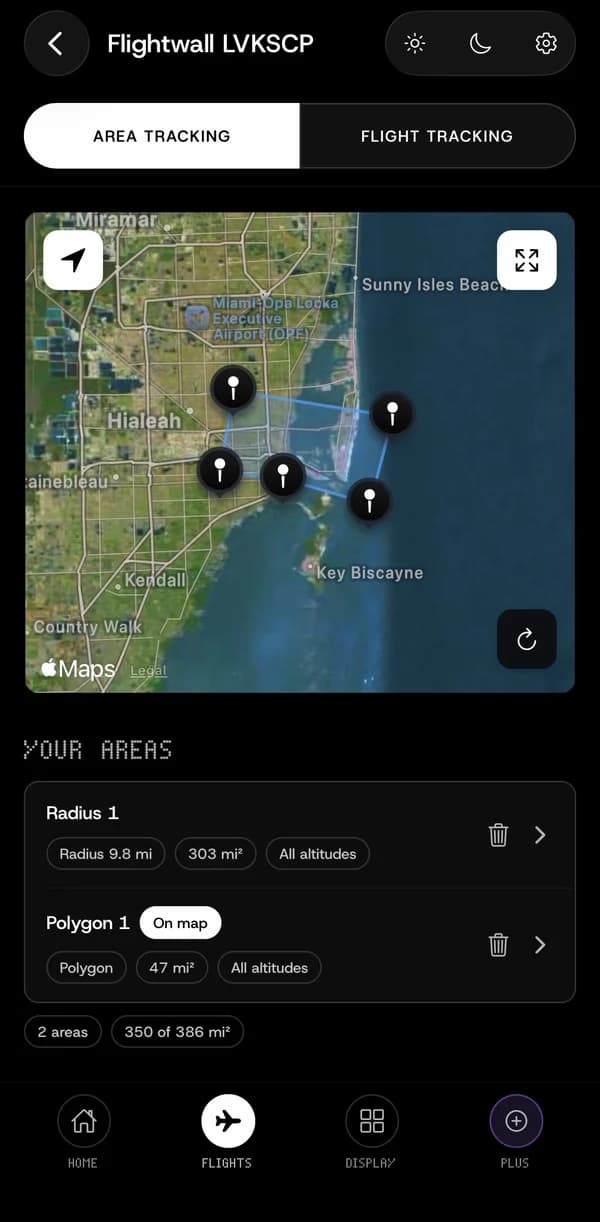
| Flights | Which flights show: your areas and filters, and the flights you follow | How tracking works |
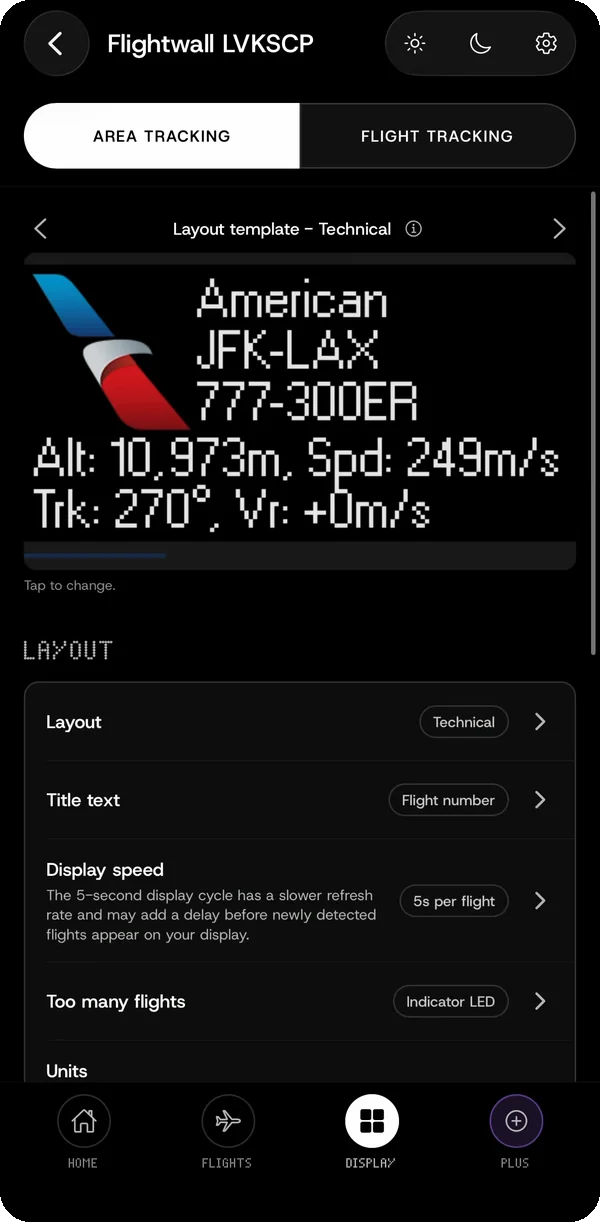
| Display | How flights look: layout, title text, speed, units, and the quiet screen, including weather | Layout settings |
| Plus | TheFlightWall Plus: sign in, subscribe, link the display, and manage your Plus Sync schedule | TheFlightWall Plus |
Flights and Display each have a switch at the top with two sides: Area tracking and Flight tracking. Area tracking covers flights passing through your areas, which Home calls Local sky. Flight tracking covers flights you follow by flight number, callsign, or registration.
Settings appear as rows. Each row shows its current values as small labels, called chips. Select a row to open its options in a sheet. Some chips are links: selecting 2 areas on Home opens your areas on the Flights tab.
The buttons at the top right
Three buttons sit at the top right of every tab.
| Button | Opens |
|---|---|
| Sun | Brightness: display on or off, brightness, border light, and border brightness. See Brightness. |
| Moon | Sleep schedule: when the display sleeps and wakes, and how bright it stays. See Sleep schedule. |
| Gear | A Settings menu for this display. |
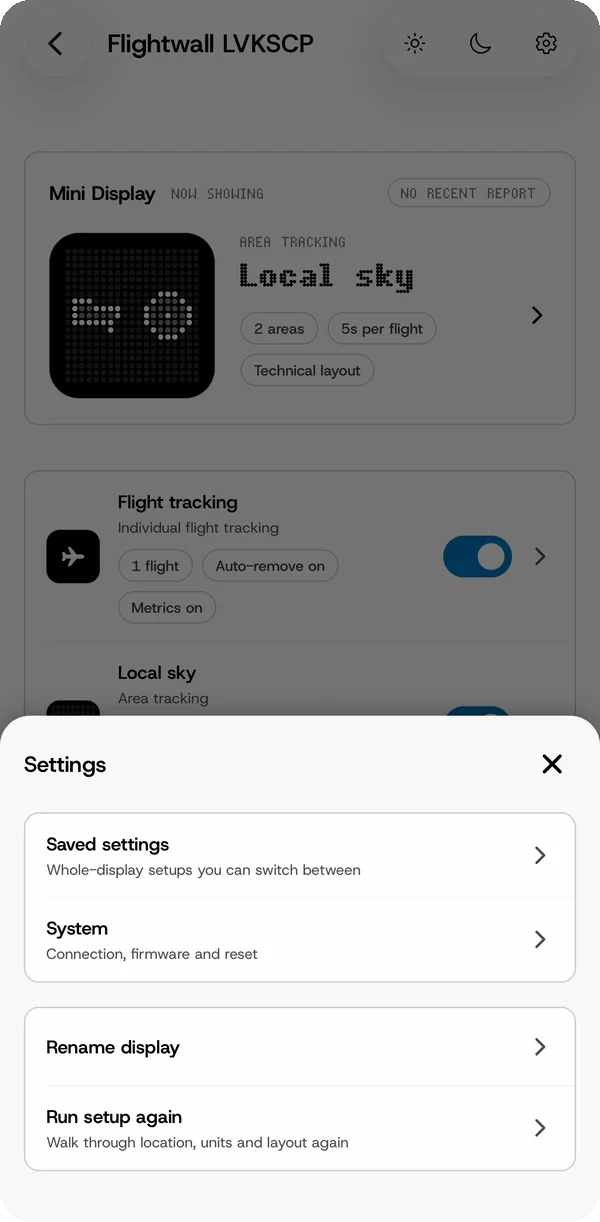
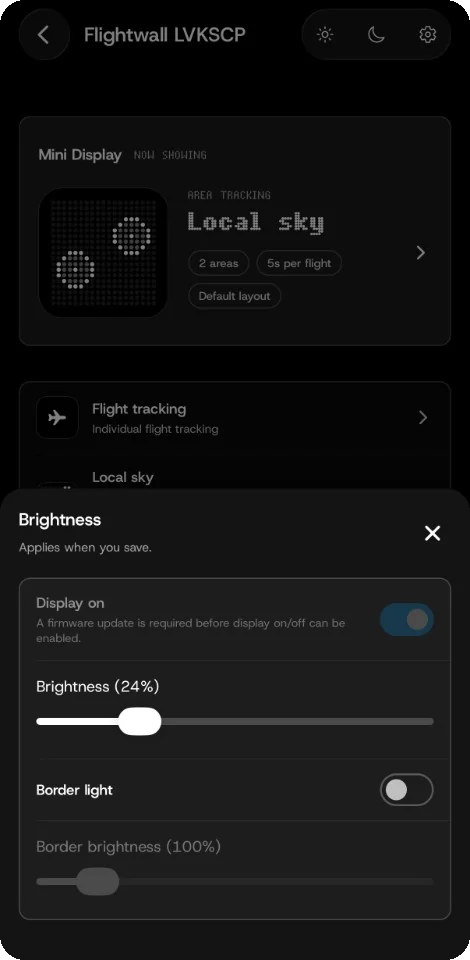
The gear menu has four items:
- Saved settings stores whole-display setups you can switch between. See Saved settings.
- System shows device information and holds Wi-Fi changes, factory reset, and removal. See System and device information.
- Rename display changes the name shown in the app.
- Run setup again opens the first-time setup steps. It is unavailable while you have unsaved changes. See First-time setup.
Saved settings and System open as full pages over the tabs. The back arrow returns you to where you were.
Saving
For weather and other recent additions, see Recent display features.
Nothing you change reaches the display until you save. While you have unsaved changes, a bar with Discard and Save floats above the tab bar. The display picks up saved changes within about ten seconds.
Save your changes covers the save bar and the messages it can show.