
Home and Now showing
Read what your FlightWall is showing and why, and switch each kind of content on or off.
Home is the first tab you see when you open a FlightWall. It tells you what the wall is doing without opening any settings, and it holds the switches that turn each kind of content on or off.
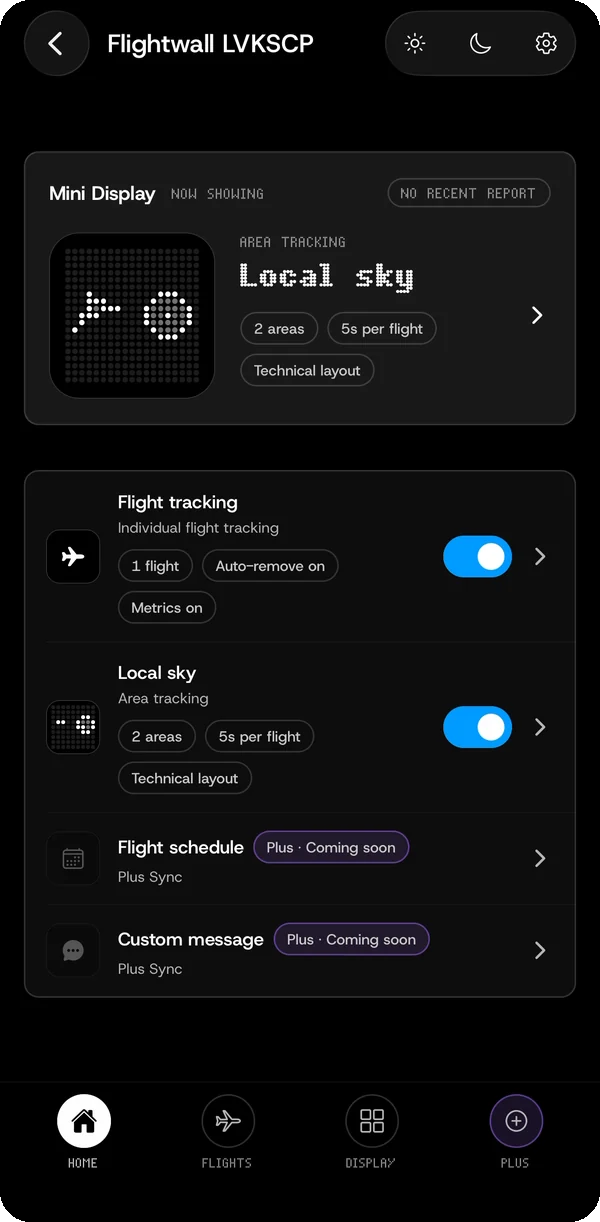
The Now showing card
The card at the top describes what your saved settings put on the wall.
| Part | What it tells you |
|---|---|
| Model | Mini Display or Widescreen Display |
| Channel name | What the wall is showing: Local sky for flights in your areas, Flight tracking for a flight you follow, or Plus Sync for your Plus schedule or custom message. When every switch is off, the card says Everything is switched off. |
| Chips | A summary of that channel's settings, such as 2 areas, 5s per flight, or Technical layout. Select a chip to open that setting. |
| On air | TheFlightWall servers sent this channel to the display in the last five minutes. |
| No recent report | The servers have sent nothing to this display in the last five minutes. The display may be offline, asleep, or restarting. The card still shows what your saved settings would put on the wall. |
A line under the card explains the current situation, for example A flight you follow is active, so your FlightWall is showing it.
While Plus Sync runs the display, the card has a purple outline, reads Plus Sync, and shows the leg it is following. Select it to open the Plus tab.
The card follows your saved settings, not the changes you are making. When you flip a switch, the row changes at once and the card changes after you select Save.
The channel rows
Each row below the card is one kind of content the wall can show.
| Row | What it does |
|---|---|
| Flight schedule | Plus Sync. The switch decides whether legs from your Plus schedule can take over the wall. |
| Flight tracking | The switch decides whether flights you follow by hand can take over the wall. Chips show how many flights you follow and whether auto-remove and metrics are on. Select the row to manage those flights. |
| Custom message | Plus Sync. The switch decides whether your Plus custom message shows on this display. Select the row to edit the message. |
| Local sky | The switch decides whether flights in your areas show. Chips show your areas, the seconds per flight, and the layout. Select the row to edit your areas. |
While Plus Sync runs the display, Flight schedule and Custom message move to the top of the list. Until then, they are dimmed and open the Plus tab. See TheFlightWall Plus.
The switches appear only when the display and TheFlightWall servers support them. Switch changes reach the wall when you save, like any other setting.
How the wall decides what to show
The wall picks one thing to show at a time, in this order:
- A leg from your Plus schedule that is under way.
- A flight you follow by hand that is in the air.
- Flights passing through your areas.
- When nothing else has anything to show, the quiet screen, such as the clock or airport weather. Choose it under Display › Area tracking › When the sky is quiet. See Quiet screen and clock.
A channel you switch off on Home never shows. With Local sky off, the wall shows only flights you follow, and only while they are active. With Flight tracking off, flights you follow by hand do not take over from your areas.
Your custom message shows while a leg is active. If you switch off Flight schedule, Flight tracking, and Local sky, the wall shows the custom message on its own, on current display firmware.
If the card does not match the wall
- The card changes only after you save. Check for the save bar above the tab bar.
- No recent report usually means the display is offline, asleep, or restarting. Check its power and Wi-Fi, and check the sleep schedule.
- If the card says Local sky has nothing to show, add an area on Flights › Area tracking. See Area tracking.