
App settings
Change the app's appearance, language, and units, and manage notifications and messages from TheFlightWall.
App settings apply to the TheFlightWall app on this phone or tablet, not to a display. Open them with the gear on the device list, before you select a display.
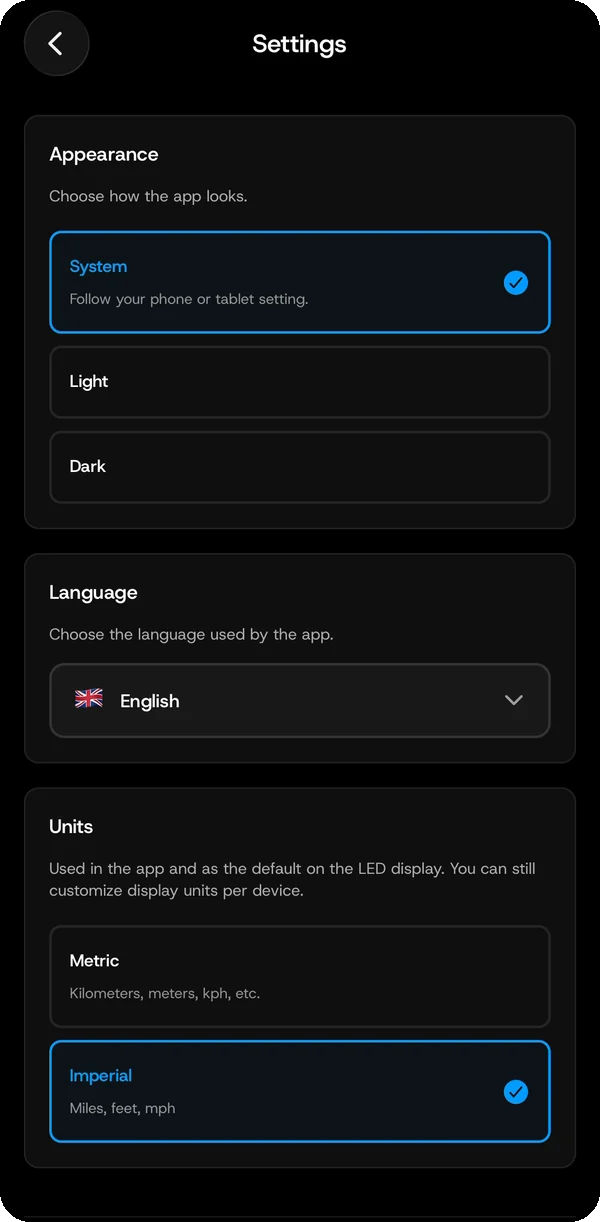
| Setting | Options |
|---|---|
| Appearance | System follows your phone or tablet. Light and Dark keep the app in one appearance. |
| Plus Account | Your TheFlightWall Plus account and subscription. See Manage your Plus account. |
| Language | Use Device Language, or one of 19 languages. |
| Units | Metric or Imperial for the app. |
| What's New | Announcements from TheFlightWall about your FlightWall and the app. Pull down to check for new ones. |
| Push notifications | Product announcements from TheFlightWall, and requests to approve linking your displays. |
| About FlightWall Mobile | The app version, developer, and a link to theflightwall.com. |
Units in the app and on the display
Units changes the numbers the app shows you, such as area sizes and slider values. It is also the starting unit for a display you add later.
It does not change a display you already have. Each display keeps its own units on its Display tab, so a phone set to Imperial can manage a wall that shows km/h. See Units.
Language
The app shows its screens in the language you pick. The display has no language setting, so changing the app language does not change the text on the wall.
Push notifications
The app asks before it sends notifications. If you choose Not now, you can turn them on later under Push notifications. If notifications are blocked in your phone's settings, the app says so, and selecting the row opens your phone's settings.